Start with the printer’s specifications
Preflight is the last technical review of a print file before you send it for production. Begin with the specifications for the exact job, rather than relying on settings from a previous project. Confirm the finished size, page count, required bleed, preferred PDF standard, color requirements, and whether the printer wants single pages or spreads. Ask how they want specialty finishes or cutting guides supplied. A well-built file can still be unsuitable if it does not match the printer’s workflow.
Make a short job note with those requirements and compare it with your document setup. For a folded leaflet, check the flat size, panel order, and fold allowances, not just the finished size. For a multi-page piece, check that the page count and orientation are correct throughout. If a specification is unclear, ask before exporting; guessing about trim or page arrangement can create problems that are hard to fix at the proof stage.
Check trim, bleed, and safe areas
Trim is the intended finished edge. Bleed extends artwork beyond that edge so small cutting variations do not leave a white sliver. If a photograph or background color reaches the edge, extend it to the bleed boundary on every affected side. Do not stretch the image after the fact without checking its quality and composition. Items that must remain visible, such as logos, captions, and contact details, belong comfortably inside the trim. Use the printer’s guidance for the safe area rather than treating bleed as extra design space.
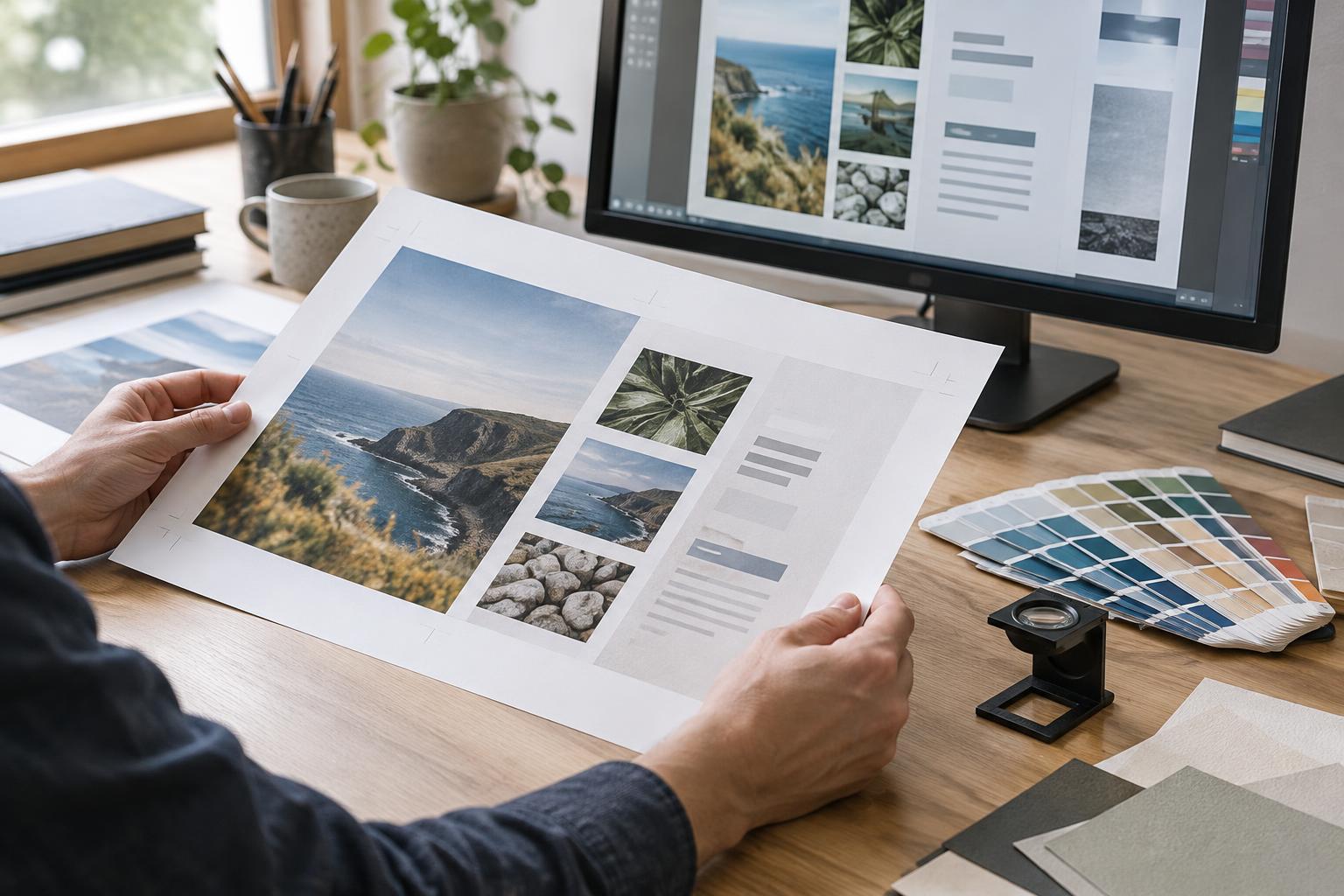
View the document with bleed and trim guides visible, and inspect every page at its final size. Look for thin borders close to an edge: even a slight shift in trimming may make them appear uneven. On folded work, keep important content clear of creases and check that text will not disappear into a fold. Remove stray objects outside the intended artwork unless they are production marks the printer has requested.
Inspect images, type, and small details
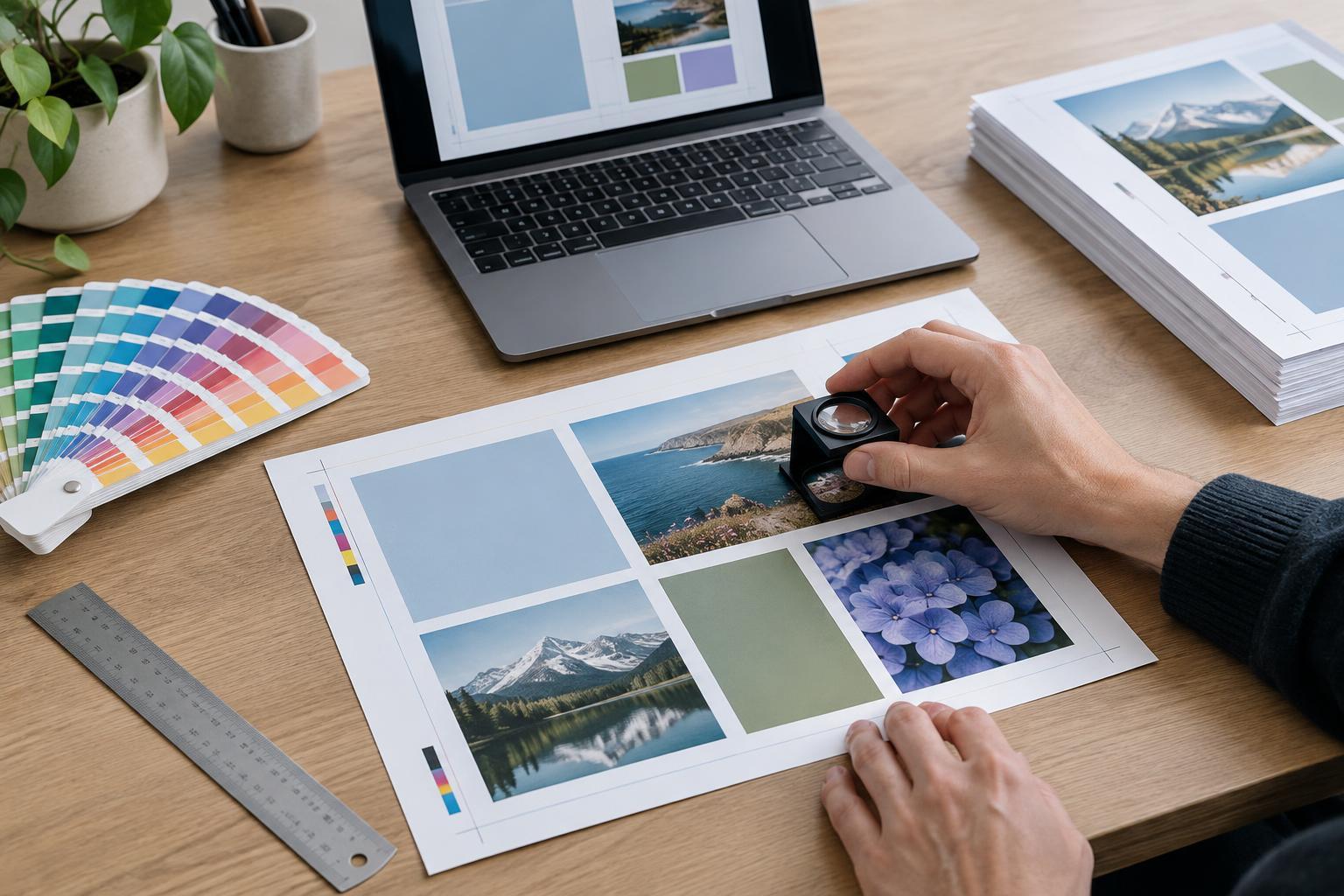
Check images at the size they will actually print. A file can have large pixel dimensions yet still look soft if it has been enlarged substantially in the layout. Many jobs use an effective resolution around 300 pixels per inch for photographs, but the appropriate target depends on the print method, viewing distance, and printer’s requirements. Look closely for unwanted pixelation, compression artifacts, and awkward crops. Confirm that linked images are current and that none are missing or unintentionally substituted.
Review every type size in context. Small reversed text, fine rules, and delicate details may be difficult to hold cleanly, especially against a busy image or when several inks must align. Make sure fonts are embedded in the exported PDF, or follow the printer’s requested alternative. Check for overset text, missing characters, unexpected font changes, and line breaks that have shifted since approval. Finally, read practical details such as phone numbers, addresses, prices, and calls to action against the approved copy; a technically sound file can still carry a content error.
Verify color and export settings
Check the document for unintended colors, including stray spot-color swatches left from an earlier design. If the job uses a spot ink, confirm its name and intended use with the printer. If it will print in process color, ask which color setup they prefer rather than assuming that converting everything to CMYK yourself will produce the best result. Screen color is not a reliable proof of printed color. Pay particular attention to blacks: small black text often needs different handling from a large dark background, so use the printer’s guidance instead of applying one rich-black mix everywhere.
Export using the requested PDF settings and include bleed if required. Check whether crop marks are wanted; adding them automatically can cause confusion when a printer expects a clean page PDF. If your design uses transparency, shadows, or overlapping objects, inspect those areas in the exported file for missing elements or unexpected seams. Do not assume that a successful export means the contents survived unchanged.
Open the final PDF and perform a handoff check
Preflight the actual PDF you plan to submit, not only the source document. Open it and check its page size, page order, bleed, and visible content. Scan every page at fit-to-page view, then zoom in on small type, image edges, and areas where objects overlap. If available, use a PDF preflight or output preview tool to flag missing fonts, unexpected color spaces, or objects outside the intended page. These tools help identify issues, but a visual review still matters.
Give the file a clear name that distinguishes it from drafts, and send only the version approved for production. Include a brief handoff note stating the finished size, quantity if known, and any special stock, ink, fold, cut, or finish requirements already agreed with the printer. Keep a copy of the submitted PDF. When a proof arrives, compare it with that copy and review both content and production details before approving it. Preflight reduces avoidable errors; the proof is the final opportunity to catch what remains.