Start with the printer’s requirements
Before opening the export menu, ask your print provider what they need. Confirm the finished page size, bleed, preferred PDF standard, color profile, and whether they want crop marks. A printer may supply a preset or template; use it when available. “Print-ready” means the file fits the intended production process, not simply that it looks good on your screen.
Set the document to the finished size rather than enlarging a smaller layout during export. If a photograph or background color reaches the edge, extend it beyond the trim line by the amount of bleed requested by the printer. Keep text and important details comfortably inside the trim line so small variations in cutting do not clip them. Exporting with bleed cannot restore artwork that never extended into it.
Protect image detail before export
Check an image’s effective resolution at the size it appears in the layout. A photograph that is sharp at a small size may look soft when enlarged. For many conventional print jobs, around 300 pixels per inch at final placement size is a useful target for photographs, though the appropriate resolution depends on the printing method and viewing distance. Increasing the resolution number in an export setting cannot create detail missing from the original image.
Keep logos, type, diagrams, and simple illustrations as vector artwork where possible. Vector shapes stay sharp when scaled, while screenshots and small web graphics often reveal pixels or compression artifacts in print. If an image must be edited, work from the best available original rather than repeatedly saving a compressed copy. During PDF export, review downsampling and compression settings: avoid reducing images below the resolution needed for their final size, and inspect any visible JPEG artifacts.
Keep fonts intact and readable
Use fonts that permit embedding, then choose an export setting that embeds or subsets them in the PDF. Subsetting includes the characters used in the document and is usually sufficient for a finished print file. Some applications substitute fonts when a typeface is unavailable, unsupported, or restricted from embedding, so a successful export message alone is not proof that every line survived unchanged.
Open the exported PDF and check its font information to confirm that fonts are embedded. Then inspect headings, small labels, accented characters, symbols, and line breaks against the working layout. Converting text to outlines can prevent font substitution in some workflows, but it makes text harder to edit or search and can complicate corrections. Treat outlines as a fallback when the printer requests them, and keep an editable original.
Choose color and PDF settings deliberately
Use the printer’s requested PDF preset or standard if they provide one. PDF/X-4 can preserve live transparency and color-managed content for workflows that support it; an older workflow may require a different standard. Do not assume that converting every image to CMYK yourself will improve the result. Ask which color profile the printer expects, and avoid assigning a new profile without understanding whether you are converting the colors or merely changing how their existing values are interpreted.
Check spot colors, rich blacks, transparency, and overprint settings if your design uses them. These choices can affect how colors interact on press, particularly where objects overlap. A screen preview is helpful but cannot guarantee an exact match to ink on paper. For color-critical work, ask the printer what proofing options are available before approving the job.
Inspect the PDF you will actually send
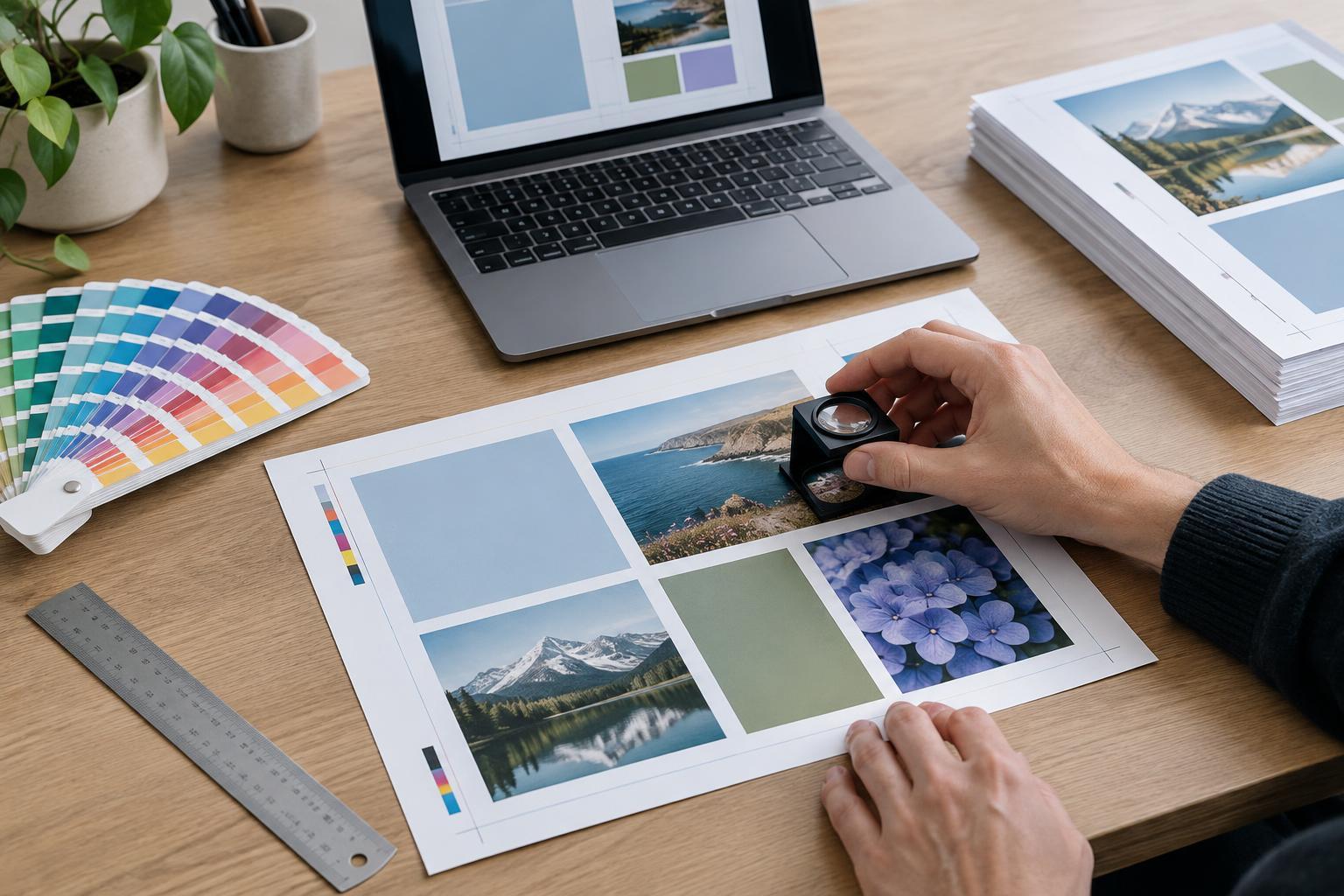
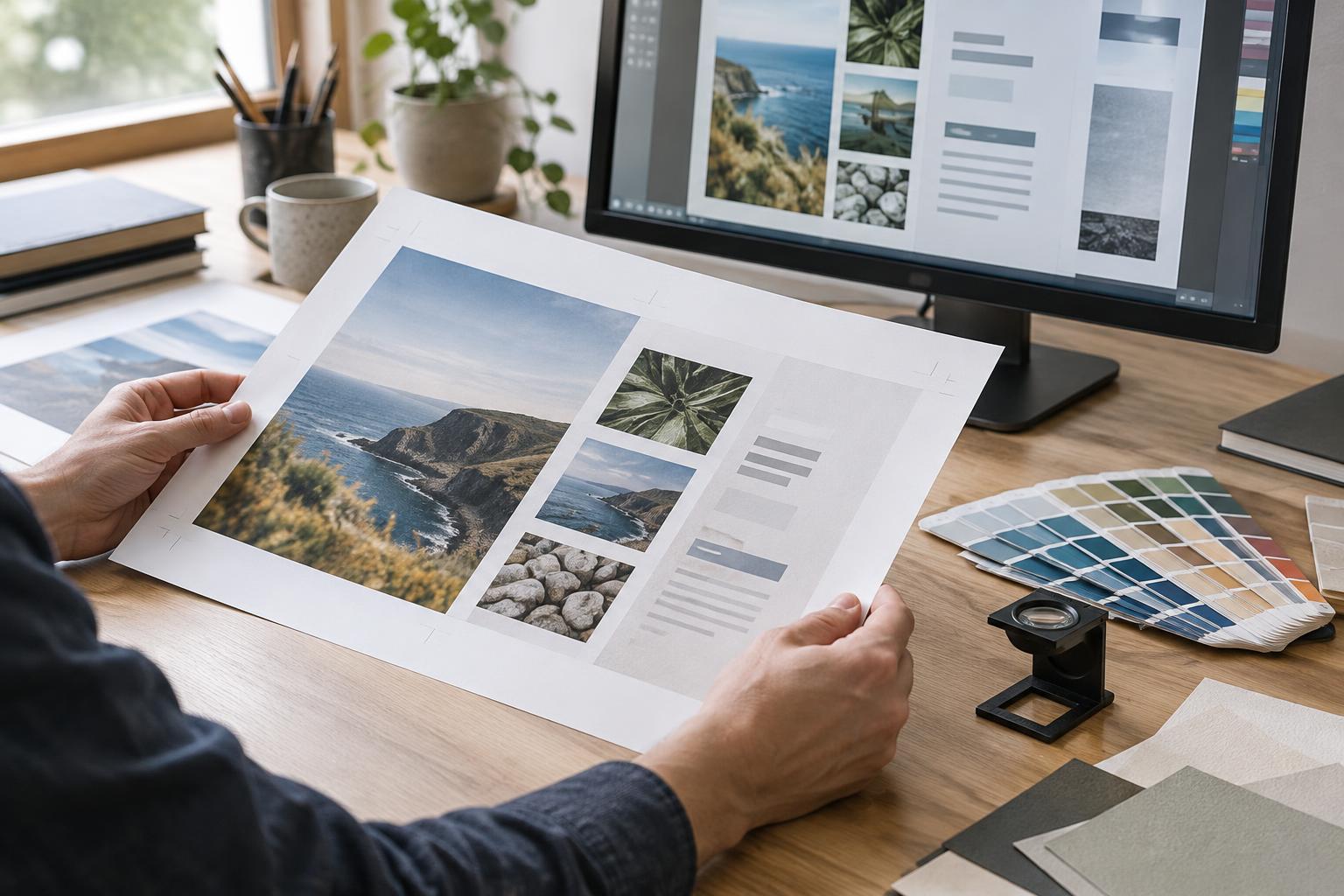
Export a PDF with the correct pages and bleed, adding marks only if requested. Open that PDF in a viewer rather than relying on the design application’s preview. Zoom in to check image edges and type, then view entire pages to catch missing elements, unexpected white borders, or incorrect page order. If you have access to a preflight tool, use it to flag missing fonts, low-resolution images, incorrect page dimensions, and color settings that do not match the printer’s specifications.
Give the file a clear name and retain both the editable layout and the final exported PDF. If you change a photograph, font, or page after checking the PDF, export and inspect it again. The safest workflow is a short, repeatable sequence: confirm specifications, prepare the layout, export with the appropriate preset, inspect the resulting file, and send that verified version.