Three boundaries, three different jobs
A design can look perfectly aligned on screen and still come back from the printer with a thin white edge or text uncomfortably close to a cut. The reason is simple: printed sheets are trimmed after printing, and the cut may shift slightly. Bleed, trim, and safe area give your layout room to handle that variation.
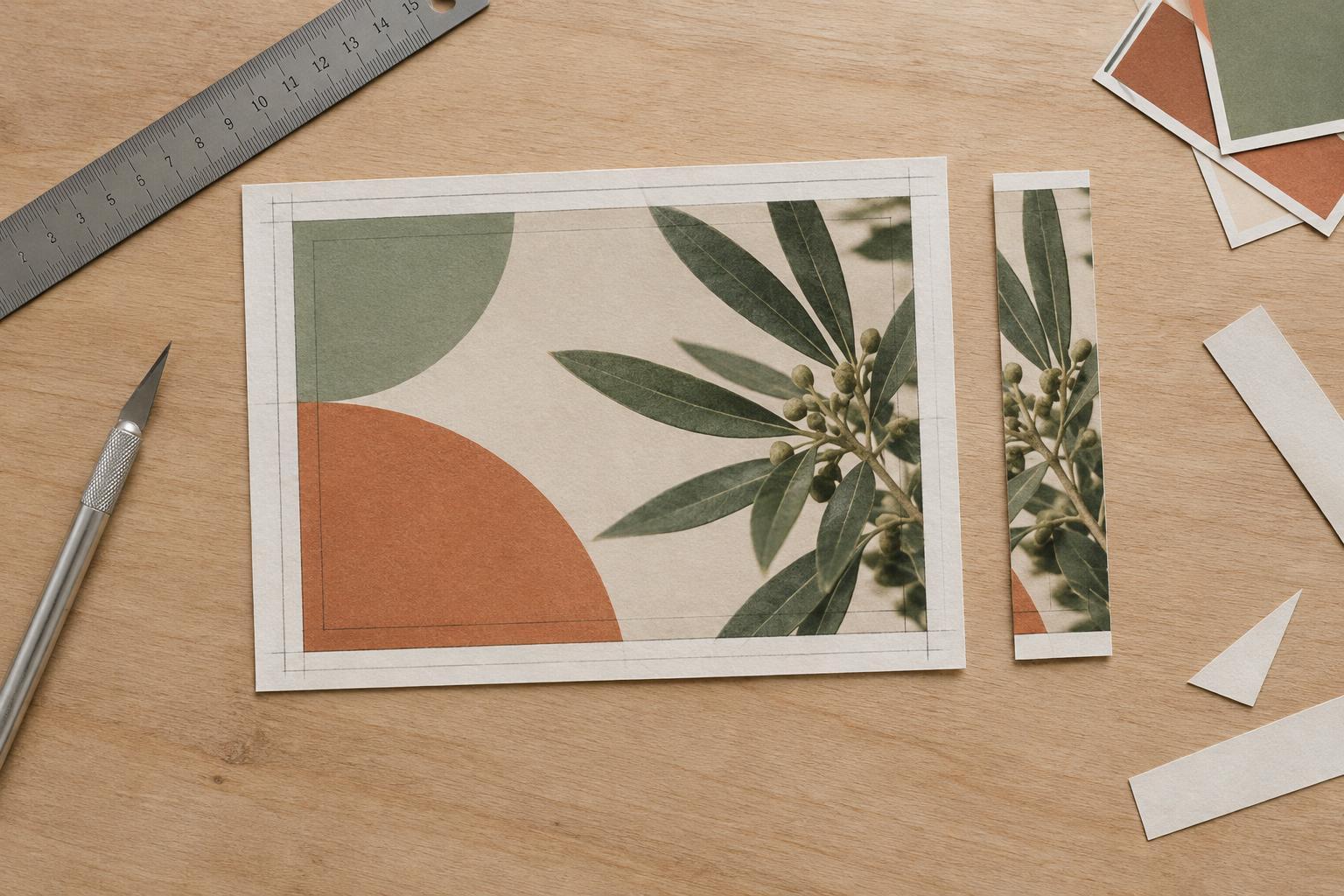
The trim line marks the finished edge of the piece. Bleed is artwork that extends beyond that line; it is cut off when the piece is finished. The safe area sits inside the trim line and gives important content some distance from the edge. Think of the three as separate boundaries: bleed protects edge-to-edge artwork, trim defines the intended size, and the safe area protects content you need people to read or recognize.
Start with the finished size and the printer’s specifications
Before placing any artwork, decide the finished size and ask the printer for its file requirements. Confirm the bleed amount, accepted file format, whether crop marks are wanted, and any special instructions for folds or finishing. A common example is 3 mm of bleed on every side, but it is not a universal setting. Use the specification for the job rather than assuming one printer’s requirements apply to another.
Set the document page to the finished trim size, then add bleed in the document setup. For example, an A5 flyer has a finished size of 148 × 210 mm. With 3 mm of bleed on all four sides, artwork extending through the bleed reaches an overall area of 154 × 216 mm. The page is still A5: the extra area is there to be removed, not to make the finished flyer larger.
If you are adapting a layout to a different size, check its proportions as well as its dimensions. Simply enlarging a smaller design can leave type too close to an edge or reveal that a photograph does not extend far enough. Reposition elements for the new trim size before preparing the export.
Extend backgrounds out; keep essential content in
Any element intended to reach the finished edge must continue past the trim line to the outer edge of the bleed. That includes solid colors, photographs, patterns, and decorative shapes. Do not stop a background exactly at the trim line: a small cutting variation could expose unprinted paper. When using a photograph, choose a crop that leaves enough image beyond the edge without cutting into the subject.
Keep text, logos, QR codes, and other essential details inside a safe area. For a simple A5 flyer, a 5 mm inset from the trim on each side can serve as a working example; the resulting central area is 138 × 200 mm. The best inset depends on the format, the design, and the printer’s guidance. A generous margin often makes a small piece easier to read, while very small type or a tightly framed logo deserves particular care.
Treat folds as another boundary to plan around. On a folded leaflet, text placed close to a fold can be harder to read even if it is well inside the outer safe area. Get the fold positions from the production specification and check the layout at the finished, folded size.
Check the artwork before exporting
Turn on guides for bleed and safe area while designing, but remember that guides themselves should not print. Scan every edge at high zoom and ask two questions: does edge-to-edge artwork fill the bleed, and does anything important sit too near the trim? Pay special attention to page corners, where short backgrounds and misplaced details are easy to miss.
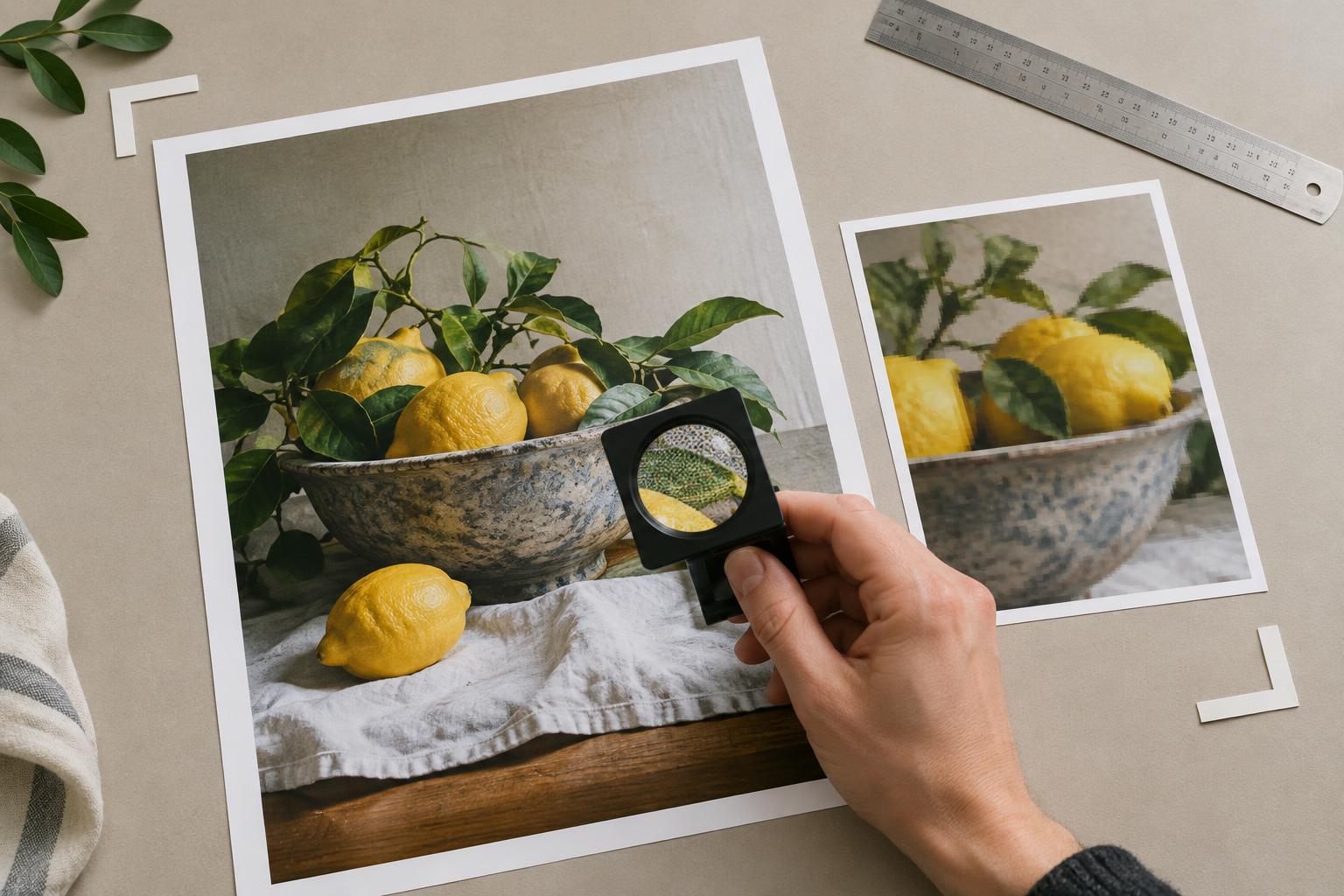
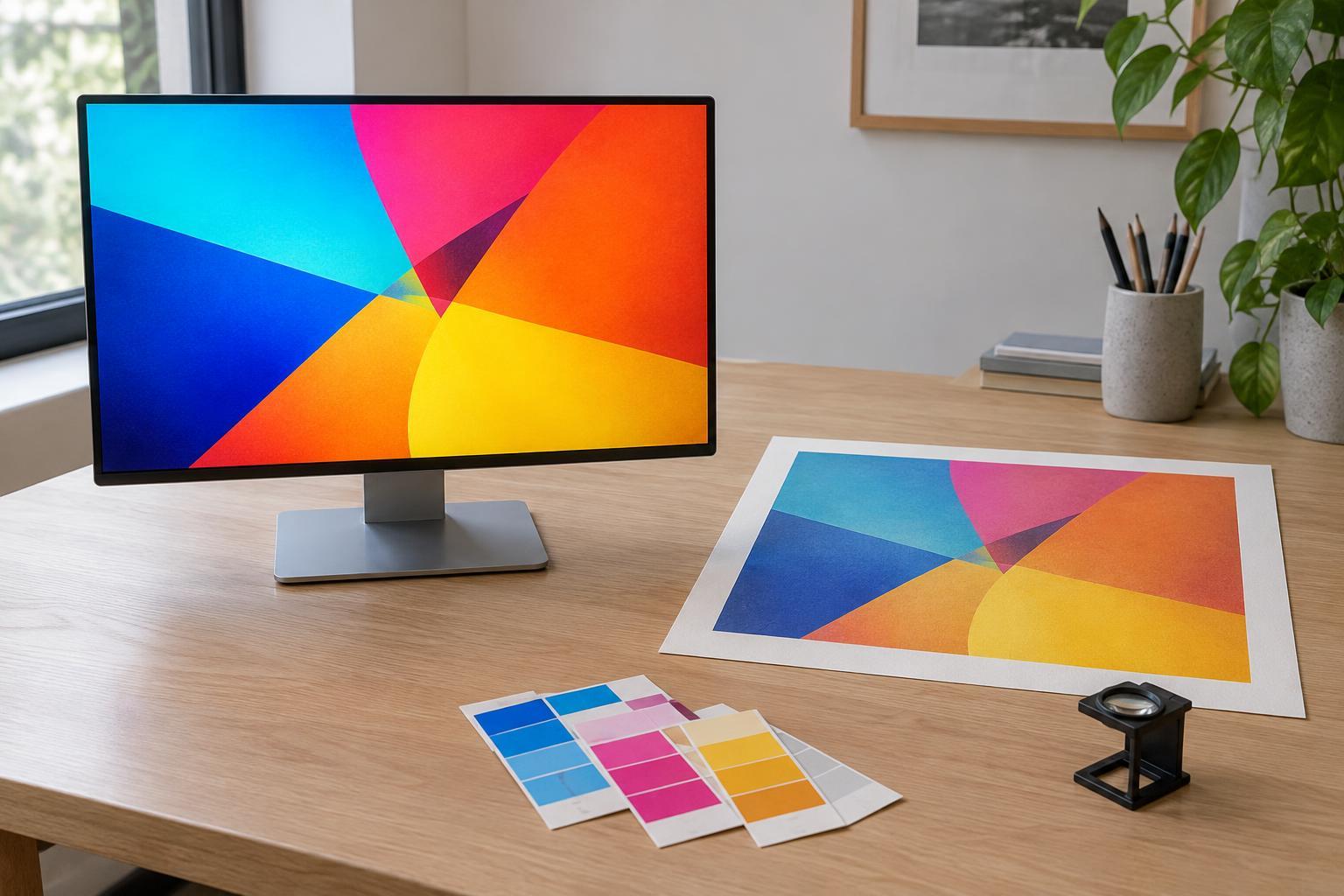
Check that images have adequate resolution at the size they will print; roughly 300 pixels per inch at final size is a common target for photographs, though requirements can vary. An image that looks sharp on a monitor may soften if enlarged substantially. Confirm the printer’s preferred color setup, and proof colors with the understanding that a screen is not an exact preview of ink on paper. Make sure fonts are embedded or handled as the printer requests.
Export and inspect the finished file
Export a print PDF using the printer’s requested settings. Enable document bleed in the export options; setting bleed in the layout file alone does not guarantee it will appear in the PDF. Add crop marks only if requested, and keep marks outside the bleed so they do not interfere with the artwork. Avoid fitting or scaling the finished design to another page size during export.
Open the exported PDF before sending it. Confirm the page count and orientation, inspect the outer edges, and check that the file includes the intended bleed. If possible, print a draft at actual size to judge type and margins, while recognizing that an office printer cannot confirm how the final trim will land. A final review of the exported file—not just the working document—helps catch mistakes while they are still easy to fix.