A screen and a printed page make color differently
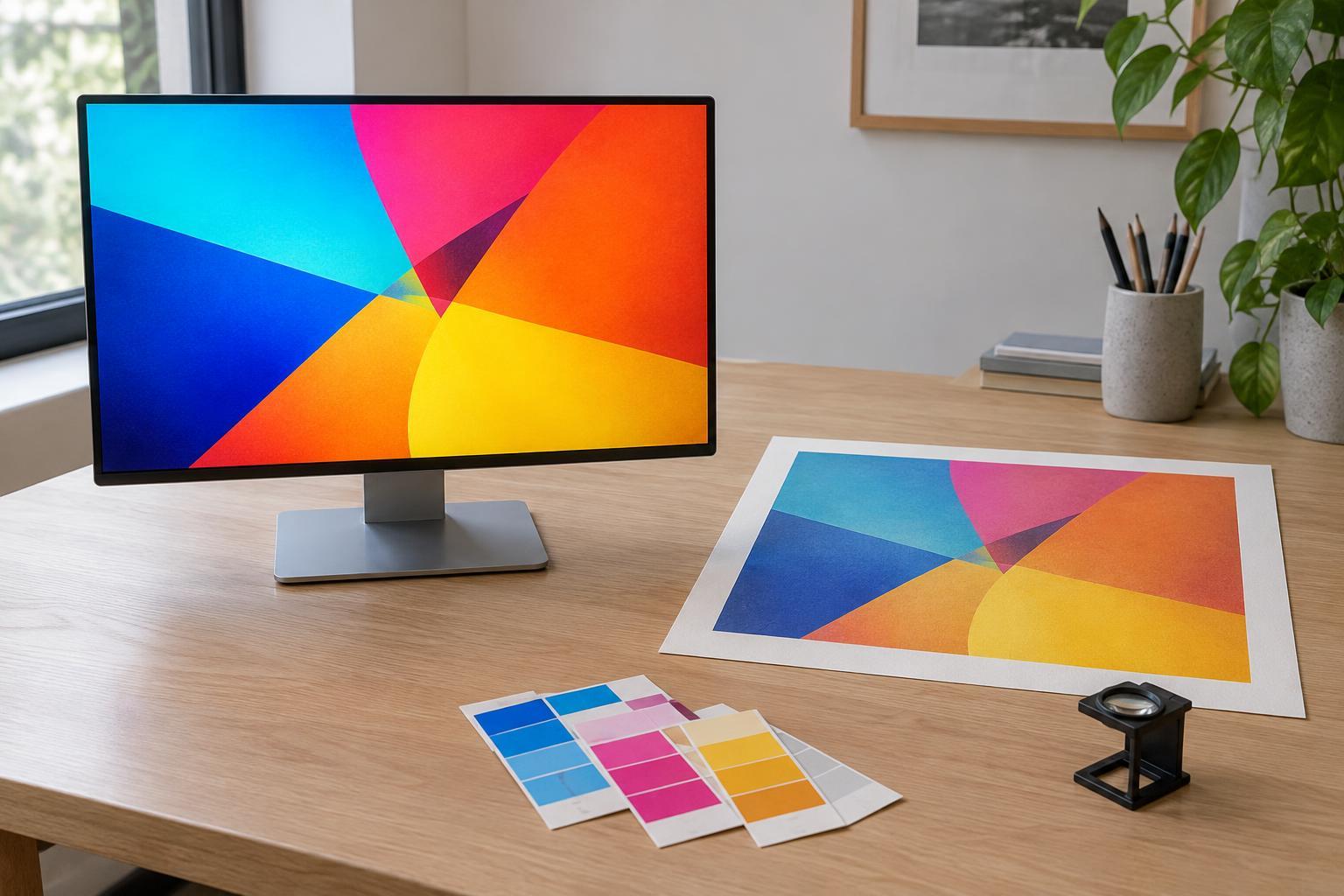
RGB describes color made with red, green and blue light. It is the working language of many screens, cameras and digital images. CMYK describes cyan, magenta, yellow and black inks used in a common printing process. Paper does not emit light like a screen; it reflects the light around it. That difference is why an artwork file and its printed counterpart can look unlike each other even when neither is defective.
A vivid blue-green used in a social graphic, for example, may be easy to display on a screen but difficult to reproduce with a particular set of inks on a particular paper. During print preparation, that color may become duller or shift slightly in hue. The same can happen to intense oranges, greens and purples. The goal is not to make the printed piece glow like a display. It is to make deliberate choices about how the design should look in its final form.
CMYK is a process, not one fixed palette
Changing a file from RGB to CMYK is often called a conversion, but there is no single universal result. A color profile describes how a device or printing condition handles color. The intended press, inks and paper can all affect which CMYK values are appropriate. Uncoated paper, for instance, often gives ink a softer appearance than a coated sheet. A conversion made for the wrong conditions may be less useful than leaving a well-prepared image in RGB until the printer’s workflow handles it.
Before converting, ask the printer what file format and color profile they prefer and whether they want images supplied in RGB or CMYK. Also ask how they want black text and large dark areas built. Small black type is commonly set in black ink alone so that slight misalignment between ink plates is less likely to create colored edges. A large dark background may call for a different ink mix, but its recipe should follow the printer’s guidance.
What may change in a real design
Imagine a small business adapting a digital event poster for a printed handout. On screen, a saturated turquoise background makes a white headline feel sharp. In print, the turquoise may appear quieter, especially on an absorbent sheet. That is a design decision to review, not merely a technical error to fix. The team might accept the softer color, choose a printable alternative, or increase contrast in another way, such as changing the headline size or surrounding space.
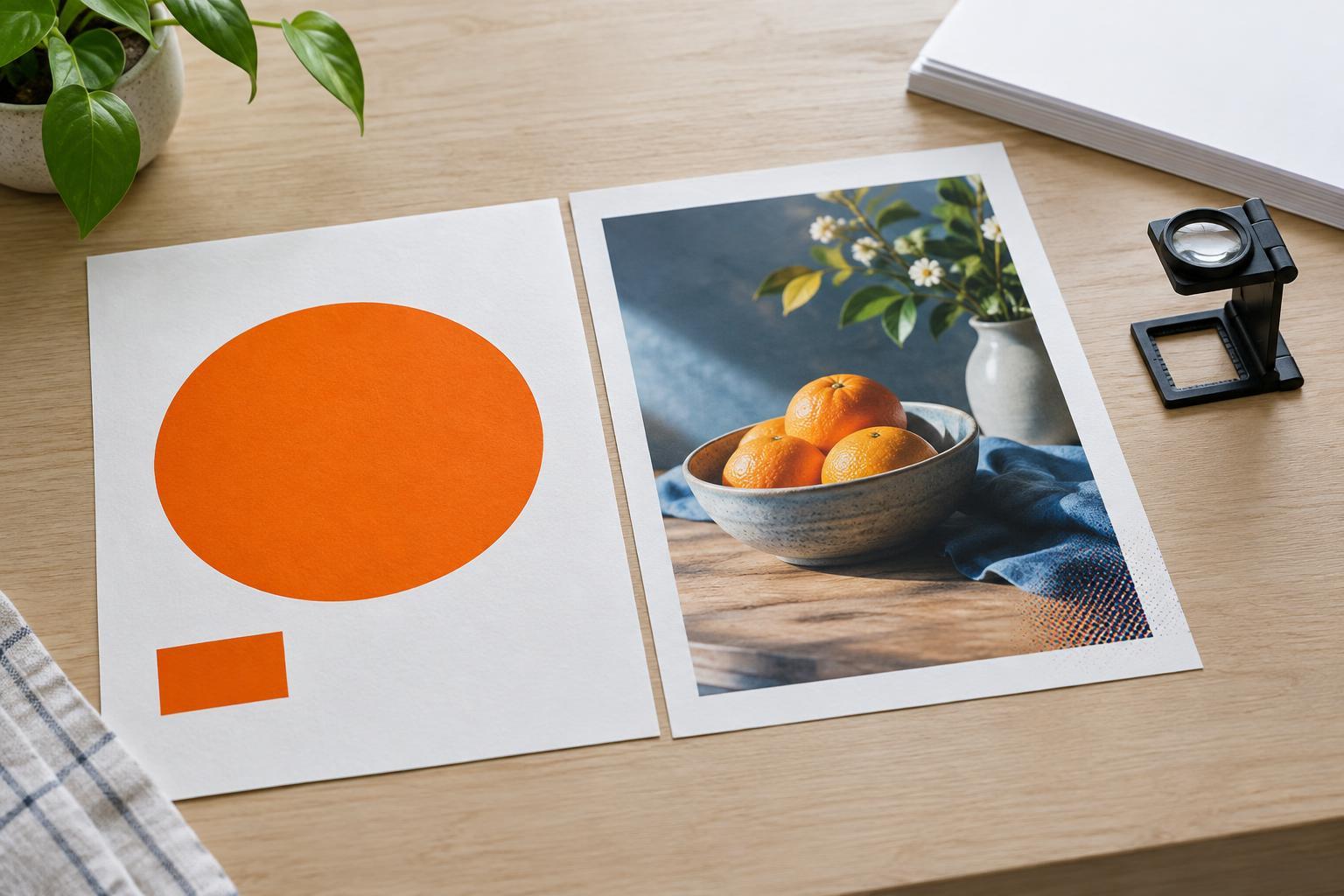
Photographs deserve their own check. Bright colors may lose intensity, while detail in very dark areas can become harder to see. Avoid judging the image only at high screen brightness. Look at the photograph at its intended print size, check that important subjects remain distinct from their backgrounds, and make restrained edits where needed. Type, logos and fine lines need attention too: their readability depends on size, contrast and paper as well as color values.
Build a simple print-preparation routine
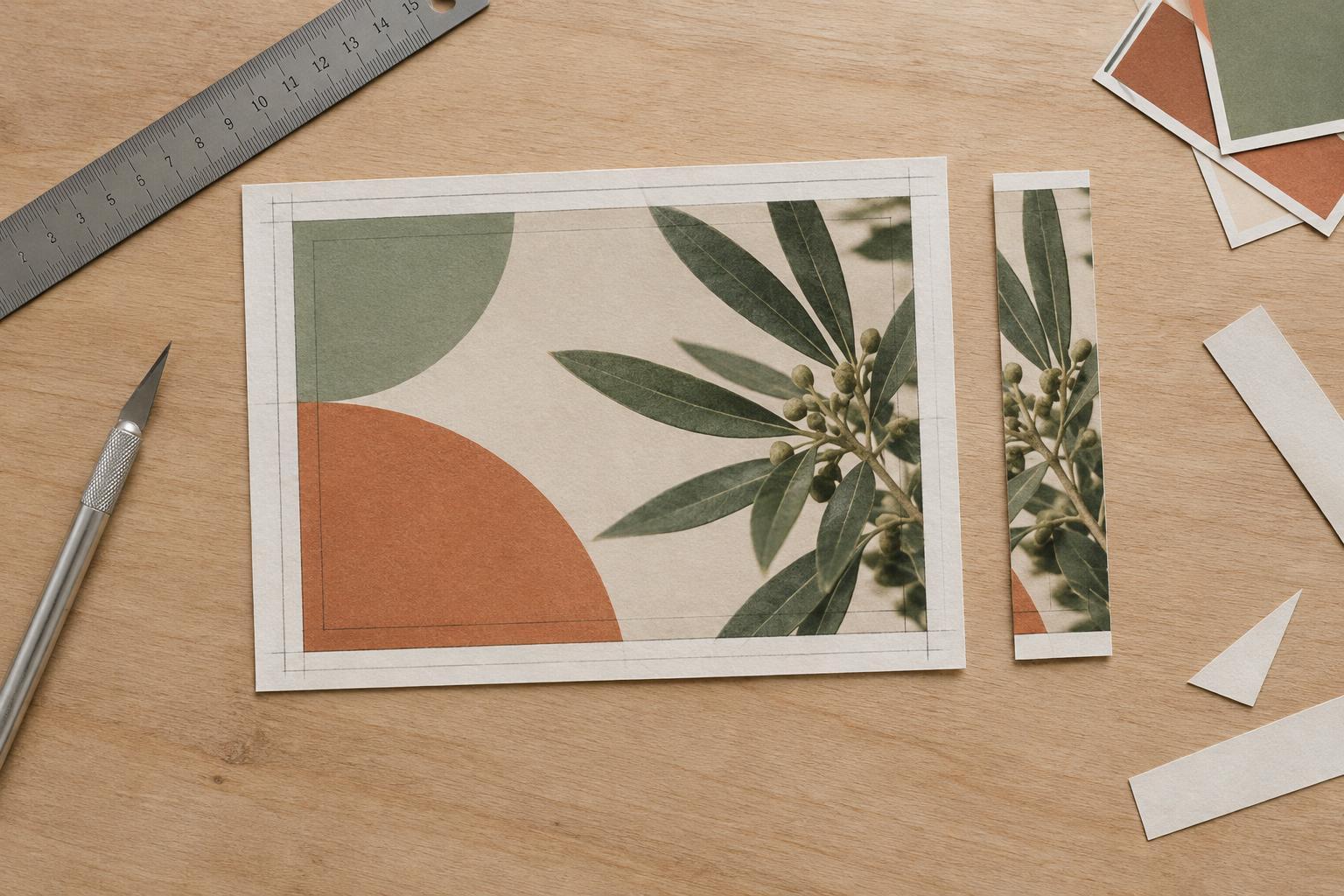
Start with the final use of the piece. Confirm its finished dimensions, paper choice and printing method with the printer. Set up the layout to their specifications, including bleed where artwork runs to the edge and a safe distance for important text from the trim. Keep an editable original before making any color conversions or export changes. That gives you a way back if the printer requests a different setup.
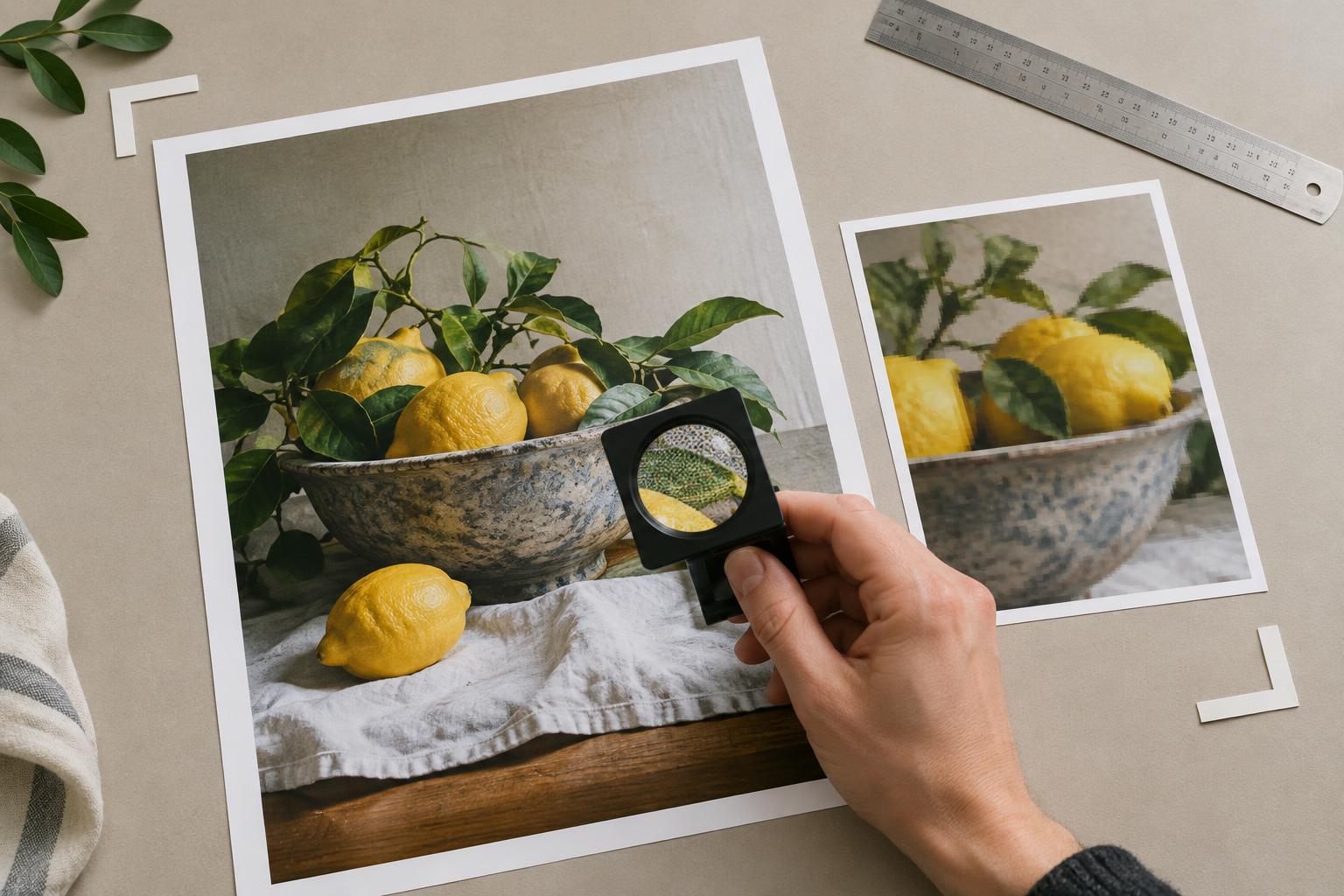
Next, check every placed image and graphic. Make sure images have enough detail at the size they will print, linked files are available, and colors that carry meaning remain distinguishable. If a brand identity relies on a particularly demanding color, discuss expectations early. A spot ink may be an option on some jobs, but it changes production planning and is not automatically part of standard CMYK printing. Do not rely on a screen preview as a guarantee of the finished color.
Use proofs to decide, not just to approve
A proof is a chance to inspect the piece before the full print run. Its value depends on what kind of proof it is and what it can accurately represent, so ask the printer what you should use it to check. A digital PDF proof is useful for spotting missing text, incorrect page order and layout problems, but the appearance of its colors still depends on your screen. A physical color proof may give a better indication of print color when produced for the intended conditions.
Review the proof under reasonable lighting and focus first on decisions that affect the message: Can the headline be read? Does the product remain recognizable? Are neighboring colors distinct enough? If something looks wrong, describe the visible problem rather than asking for the whole design to be “more vibrant.” A specific request, such as opening up detail in a dark photograph, gives the printer or designer a clearer starting point. Print preparation works best as a conversation between the artwork and the process that will reproduce it.