Start with the size on the page
The resolution that matters is not just a number attached to an image file. It is the number of image pixels available for each inch the image occupies in the finished piece. This is called effective resolution, measured in pixels per inch, or PPI. To find it, divide the image’s pixel width by its printed width in inches, then do the same for its height.
For example, a photograph measuring 2400 × 1800 pixels placed at 8 × 6 inches has 300 PPI in both directions. Place the same file at 12 × 9 inches and it has 200 PPI. The file has not changed; only its size on the page has. Before checking resolution, confirm the actual dimensions of the image box in your layout rather than estimating from its appearance on screen.
Check the pixels that survive the crop
A crop removes pixels from the area available to print. Suppose a 4000 × 3000-pixel photograph must fill a square. If you make a centered square crop, the usable area is 3000 × 3000 pixels. At 10 × 10 inches, that crop has an effective resolution of 300 PPI. Calculating from the original 4000-pixel width would give a misleading result.
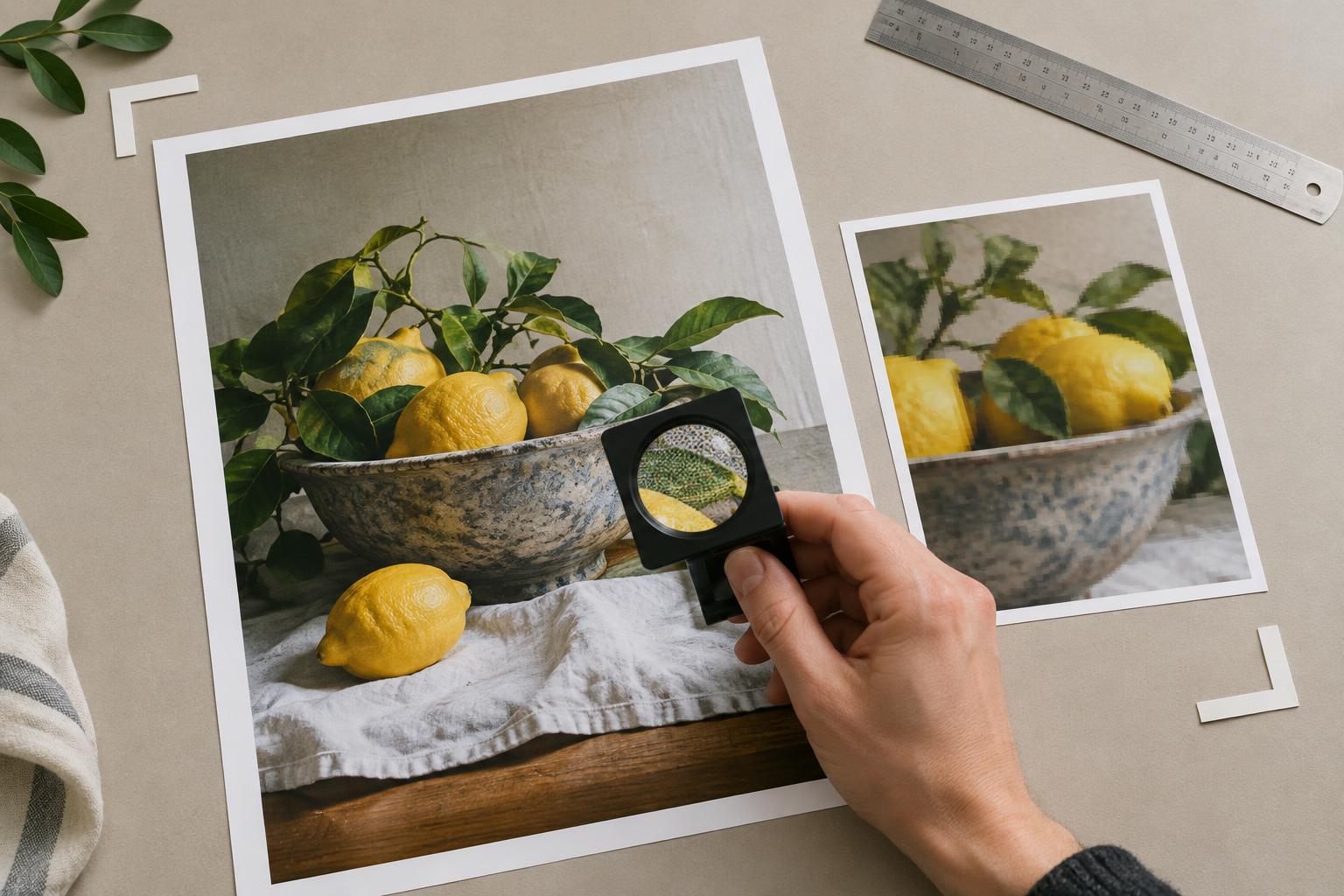
You do not always need to export a new cropped file to make this check. Many layout applications show effective PPI for a placed image, taking its scale in the document into account. If yours does not, note the approximate pixel dimensions of the crop and divide by its final printed dimensions. For a tightly cropped product detail, be particularly careful: enlarging a small portion of a photograph can reveal softness that was not obvious in the full image.
Use a target suited to the job
A common planning target for photographs in close-viewed print is around 300 PPI at final size. It is a useful check, not a promise of quality or a universal minimum. The printing method, paper, image detail, and expected viewing distance all affect what will look acceptable. A large display viewed from farther away may not need the same effective PPI as a small brochure held in someone’s hands. If a printer provides specifications for the job, use those instead of a general rule of thumb.
PPI describes the image data. Printer DPI, or dots per inch, describes how a device places ink or toner; the two numbers are not interchangeable. Changing a file’s resolution label from 72 to 300 PPI without adding real pixels will not improve its print detail. Likewise, enlarging a small file with software may create more pixels, but it cannot reliably restore detail that the original never captured.
Include bleed and watch for hidden scaling
An image that runs to the trimmed edge usually needs to extend into the bleed area. Check the printer’s required bleed and make sure the image covers that extra area without exposing an edge. If you prepare an image to exact dimensions outside the layout application, include the bleed in those dimensions before calculating the pixels required. Keep important visual details away from the trim line, where small cutting variations can matter.
Layouts also change as a project develops. A portrait may become a full-page background, or a small photograph may be enlarged to make room for text. Recheck effective PPI after these changes. If resolution is too low, practical options include using a higher-resolution original, reducing the image’s printed size, choosing a wider crop, or selecting a different image. Avoid assuming that a sharp-looking preview means the placed file is adequate.
Run a final preflight before export
For a flyer, brochure, or packaging panel, make a short image checklist. Confirm the final trim size and bleed, inspect each placed photograph’s effective PPI, and check any crops made late in the design process. Pay special attention to images copied from presentations or web pages, since their available pixel dimensions may be smaller than expected. View important images at roughly their intended printed size, while remembering that a screen preview cannot perfectly predict print.
After exporting the print-ready file, check the exported pages too. Confirm that every image is present, no unexpected low-resolution replacement has slipped in, and the artwork still reaches the bleed where intended. When an image falls short of the printer’s specification, ask whether a smaller placement or different file is preferable. The key question is simple: how many usable pixels remain for the space this image will occupy on paper?