Start with the finished object
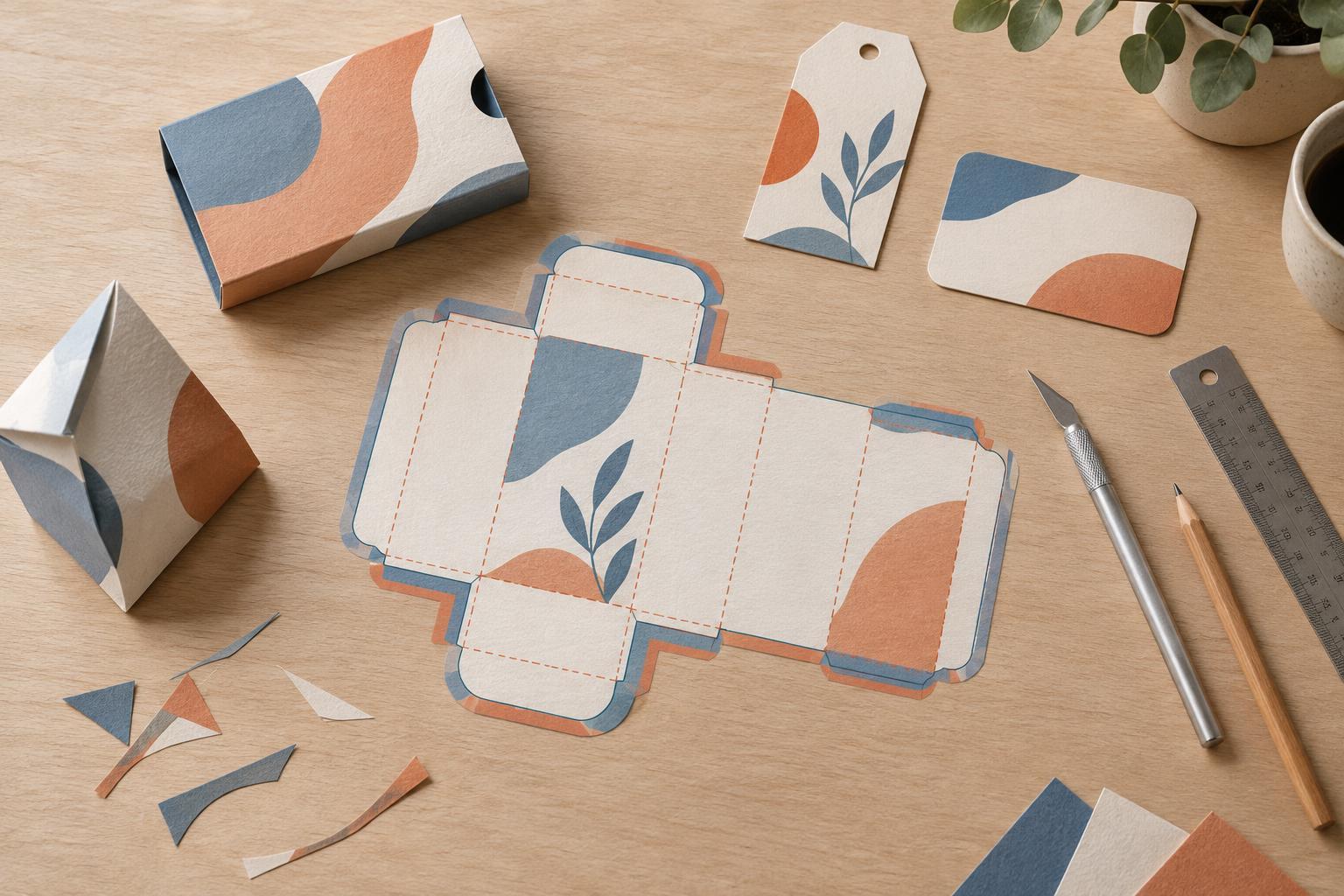
A dieline is a map of the physical piece: it shows where the material will be cut and, when needed, where it will fold or be scored. It is not the printed design itself. Before drawing one, decide what the finished piece must do. A hang tag needs room for a hole and readable information; a folded sleeve needs to fit around its contents; a shaped card needs edges that survive handling.
Ask the printer for a template or production specifications before building the file. Confirm the finished dimensions, material, printing method, and whether the piece will be supplied flat or assembled. If a cutting tool already exists, use its approved dieline rather than redrawing it. A small change to a corner, slot, or fold can affect how the piece is produced.
If you are developing a new shape, sketch it at actual size and make a rough paper version first. Hold it, fold it, and place it around any product it must fit. This simple test can reveal a flap that is too short or a hole that sits too close to an edge, before the artwork makes the shape feel final.
Draw clean paths and label their purpose
Build the dieline with vector paths so the edges remain precise at output size. Use a continuous, closed path for the outer cut where possible, and keep interior cuts, perforations, scores, and folds distinct. Avoid duplicate paths or stray points: two lines sitting on top of one another may be difficult to spot on screen but can create confusion during production.
Place production paths on a separate layer from the printed artwork. Give each operation a clear name, such as CUT, SCORE, or PERFORATION, and use visibly different line colors in the working file. Printers may have specific requirements for spot-color names, line weights, or overprint settings, so follow their instructions rather than assuming one convention works everywhere. Production lines are guides for the manufacturing process, not decorative lines that should appear on the finished piece.
Think about the shape while drawing it. Very narrow projections, tiny notches, or intricate corners may be fragile or difficult to cut cleanly, depending on the material and process. If a detail is important to the concept, discuss it with the printer instead of relying on a screen preview.
Extend artwork beyond the cut and protect important content
Artwork that reaches a cut edge should extend past the dieline into a bleed area. This gives the cutting process room for minor variation without leaving an unintended strip of unprinted material. Use the bleed amount requested by the printer. Likewise, keep text, logos, and other essential details inside a safe area, away from cuts, folds, holes, and slots. The appropriate distance depends on the piece and its production method.
Check each edge of a shaped design, not just the outer boundary. An interior window needs the same consideration as an exterior cut if color is meant to meet its edge. On a folded piece, inspect the artwork on both sides of the fold and confirm which panel will be visible when assembled. A background that looks continuous in a flat layout may break unexpectedly on the finished object.
Remember that printed alignment and cutting alignment are separate production steps. Do not place a thin border directly along an irregular cut unless slight shifts would still look intentional. A generous field of color or a border set well inside the shape is often more forgiving.
Proof the piece in its real orientation
Print the artwork and dieline at actual size for a working proof, then trim and fold it by hand. A home or office printer will not predict final color or cutting precision, but the model can show whether the reading order makes sense and whether the shape works. For packaging or sleeves, test it with the intended contents. Mark the front, back, inside, and any glue or overlap areas on the mockup.
Check the type at its intended size, especially near curves or folds. Make sure a hole will not remove part of a logo and that a fold will not split a line of copy. If the design uses double-sided printing, verify how the reverse side aligns when the piece is turned over. Update the dieline and artwork together after every shape change so they do not drift into different versions.
Hand off a file the printer can interpret
Before export, compare the final artwork against the approved dieline at actual size. Check that cut and fold paths are present, clearly identified, and separate from printable artwork. Confirm bleed around the relevant edges and safe placement of essential content. Review any linked images, fonts, color settings, and PDF export requirements using the printer’s supplied specifications.
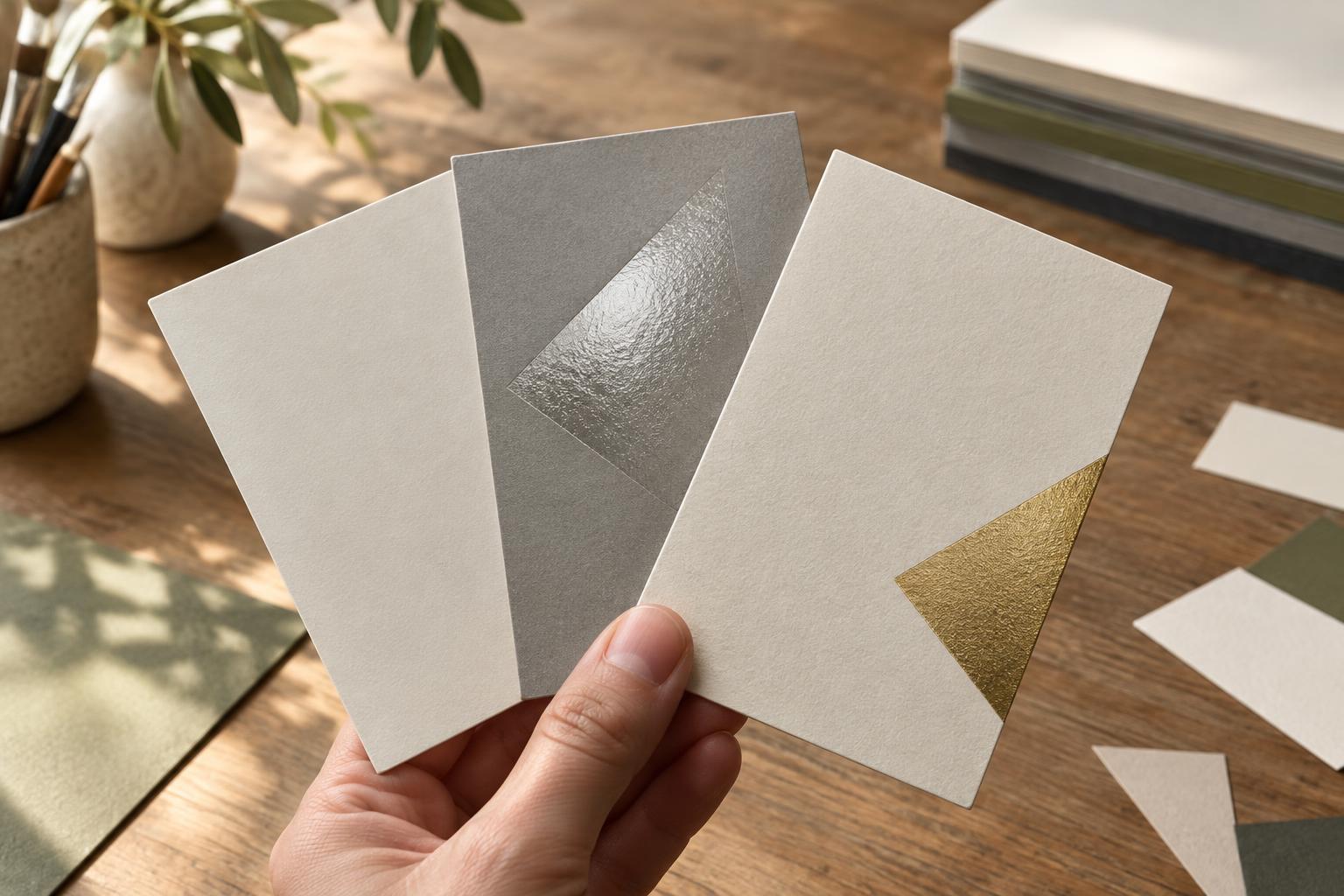
Send a reference view that shows the intended finished shape, along with a short note explaining any non-obvious features: which lines cut, which fold, where a hole belongs, and how the piece should face when assembled. If a file includes coatings or other finishing effects, identify those separately as well. The goal is not simply to deliver a technically neat file; it is to make the physical result understandable to everyone handling it.