Two ways to make black in CMYK
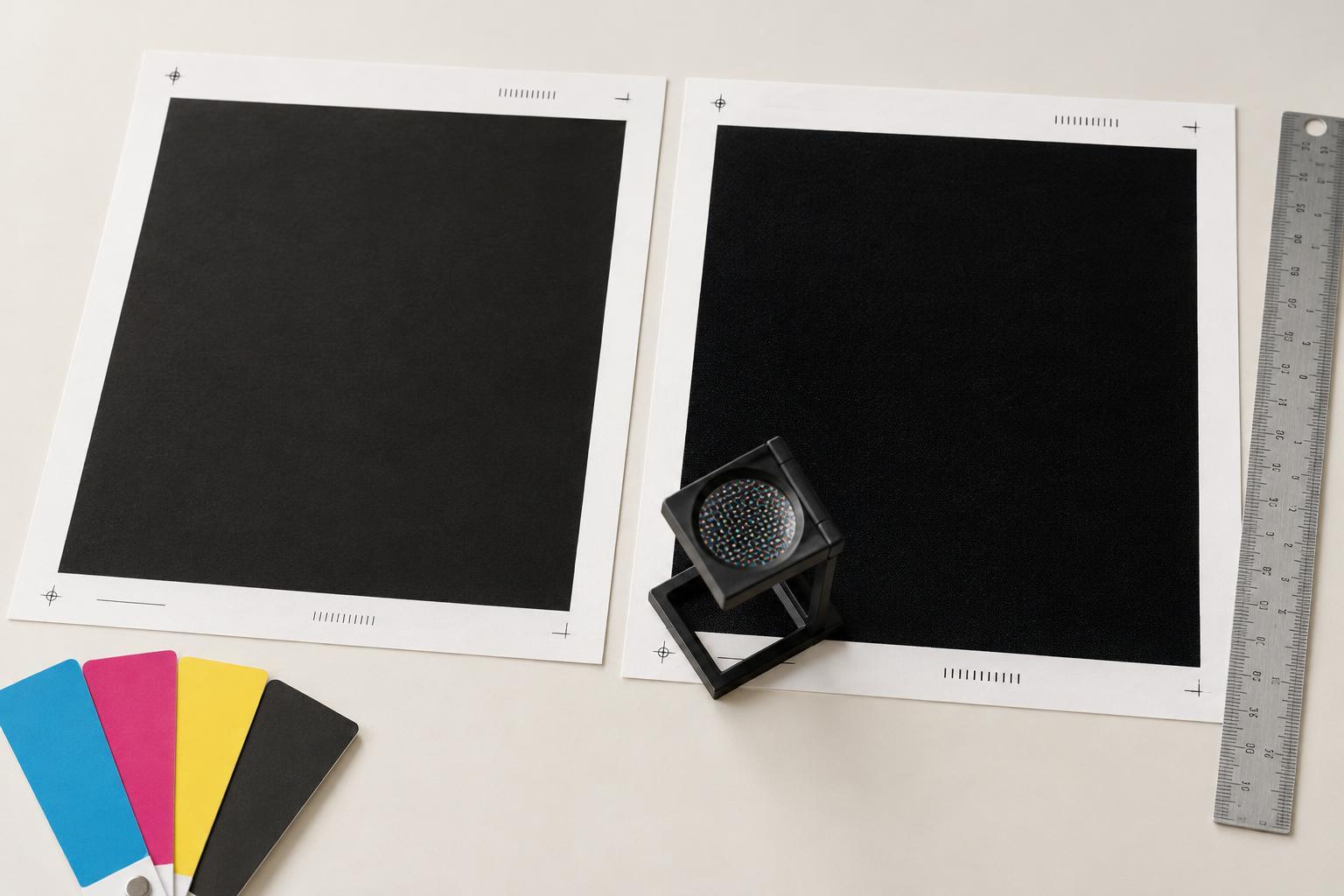
In a CMYK print file, 100% black means the artwork uses the black channel alone: 0% cyan, 0% magenta, 0% yellow and 100% black, often written as 0/0/0/100. Rich black combines black with some cyan, magenta or yellow. The additional inks can make a large printed area look deeper or less flat than black ink alone.
Neither choice is a universal upgrade. A tiny line of type and a full-page background place different demands on the press. Paper, printing method and the printer’s color settings also affect the result. The useful question is not “Which black is best?” but “What job does this black need to do?”
Use 100% black for small text and fine details
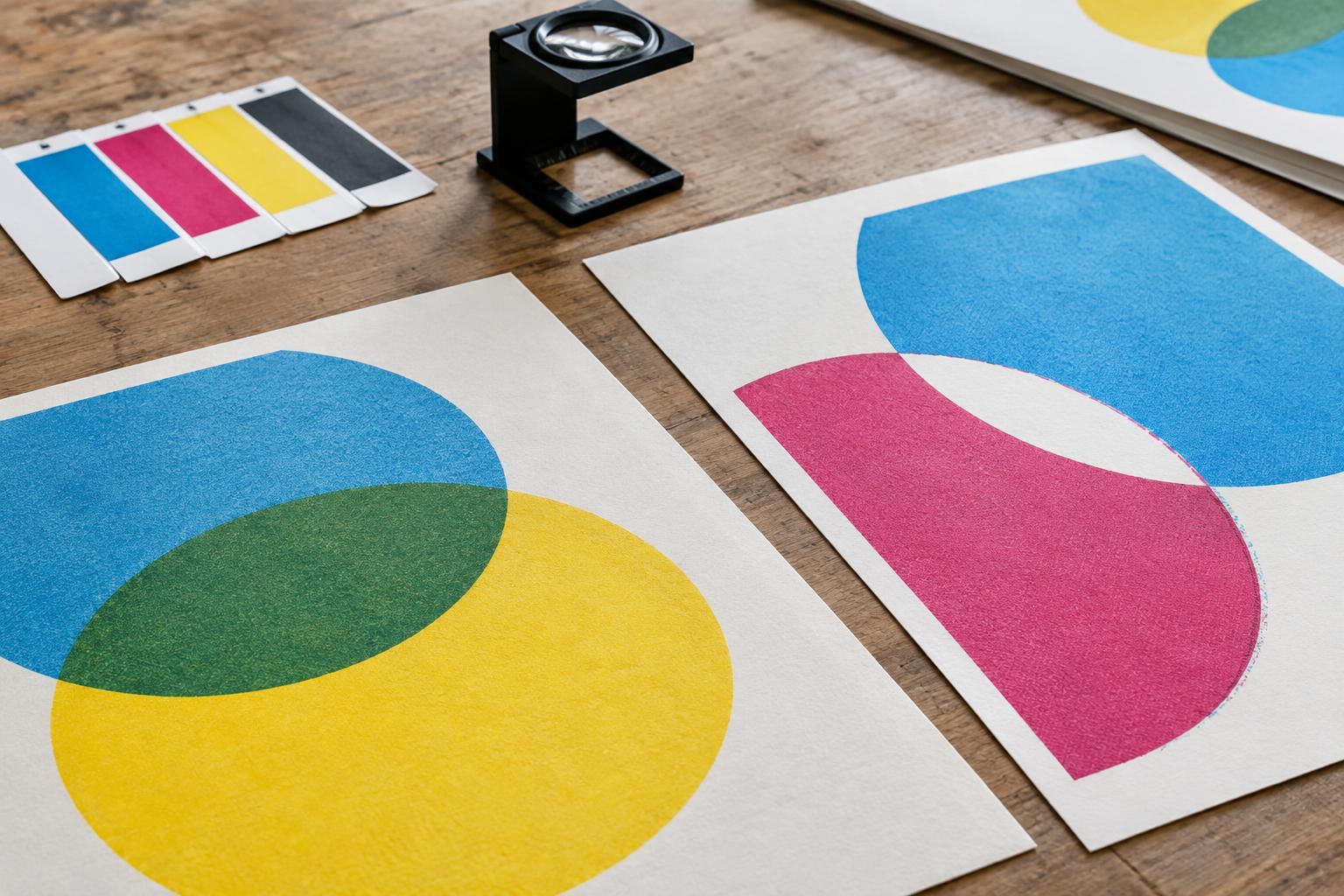
For body copy, captions, small logos, rules and other fine elements, 100% black is usually the safer choice. It prints from one ink channel, so there is no need to align several colored impressions to form each thin letter. If a four-color black is slightly out of register, small type can develop colored edges and appear soft.
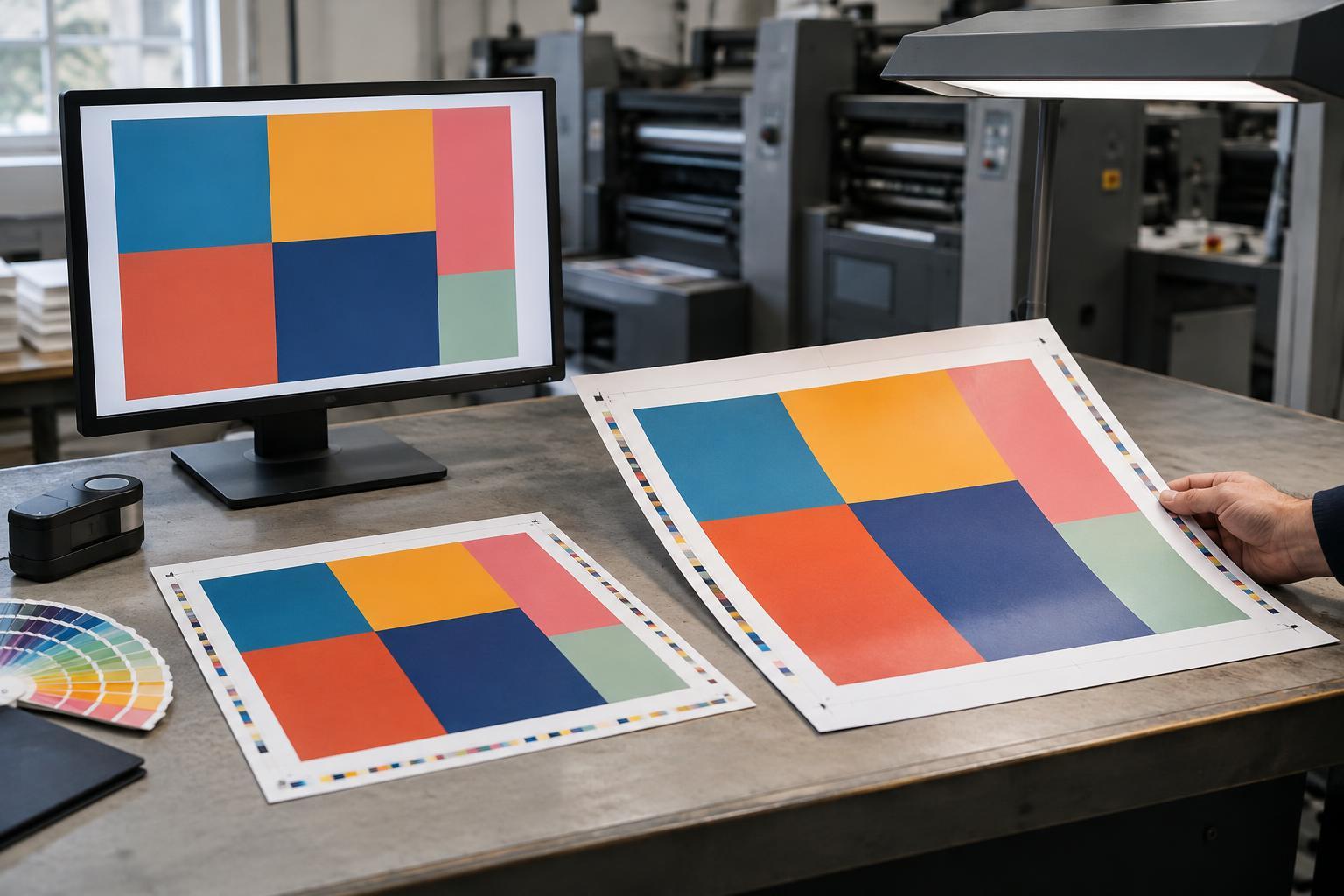
This matters even when the document looks sharp on screen. At normal reading size, a slight shift that is hard to notice in a solid shape may be obvious around a lowercase letter. When preparing a menu, brochure or packaging panel, check that dark text has not been converted into a four-color mixture during export or through a color setting.
Black text over a colored area needs an additional check. Some production workflows set 100% black to overprint, meaning the color beneath it remains in place. That can be useful for avoiding tiny gaps caused by misregistration, but it may change the text’s appearance over different backgrounds. Inspect the PDF with overprint preview enabled and ask the printer if the intended behavior is unclear.
Consider rich black for large solid areas
A large cover background, poster panel or broad graphic shape is where rich black may be useful. On some paper and presses, 100% black alone can appear lighter beside photographs or other dense colors. A suitable rich-black build can give the area a fuller appearance. That benefit is most relevant where there is enough space for the ink mixture to read as a solid field, rather than a delicate edge.
Do not choose a CMYK recipe by copying a number from an unrelated project. Every added ink increases total ink coverage, and too much can cause drying, set-off or other production problems. The appropriate mixture depends on the paper, press and color profile. Ask the print provider for its preferred rich-black build and maximum ink coverage, especially for uncoated stock or large areas.
Rich black also requires care around reversed-out text: white letters formed by leaving the paper unprinted. Small white type in a multi-ink background may look uneven if the inks do not align perfectly. If the design allows it, give reversed type generous size and weight, and check a production proof when legibility is important.
Keep adjoining blacks consistent
Imagine a flyer with a dark photograph extending into a black border. The photograph’s shadows may contain several inks, while a border built as 100% black uses only one. The two areas can look different in print even if they appear to match on a monitor. That does not mean every black element should use the same build; it means adjoining areas deserve a deliberate comparison.
For a border intended to blend with an image, discuss the transition with the printer or examine a proof. For text sitting on top of that border, keep legibility and registration in mind rather than automatically matching the border’s ink values. A background and the words on it can—and often should—use different black builds.
Make the decision before export, then check the PDF
A practical starting rule is simple: set small positive text and fine details in 100% black; consider printer-approved rich black for large, prominent dark areas. Treat that as a starting point, not a substitute for production specifications. A digitally printed short run and an offset-printed piece on absorbent paper may call for different handling.
Before sending the file, inspect the exported PDF rather than relying only on the layout document. Check the CMYK values of text and backgrounds, review separations and overprint settings, and confirm that the file uses the color profile requested by the printer. If a particular black must match a photograph, sit behind reversed type or cover a large portion of the sheet, flag it when requesting a proof. A brief conversation at that stage is easier than discovering an unintended gray panel or fuzzy type after printing.