Start with the kind of artwork, not the file extension
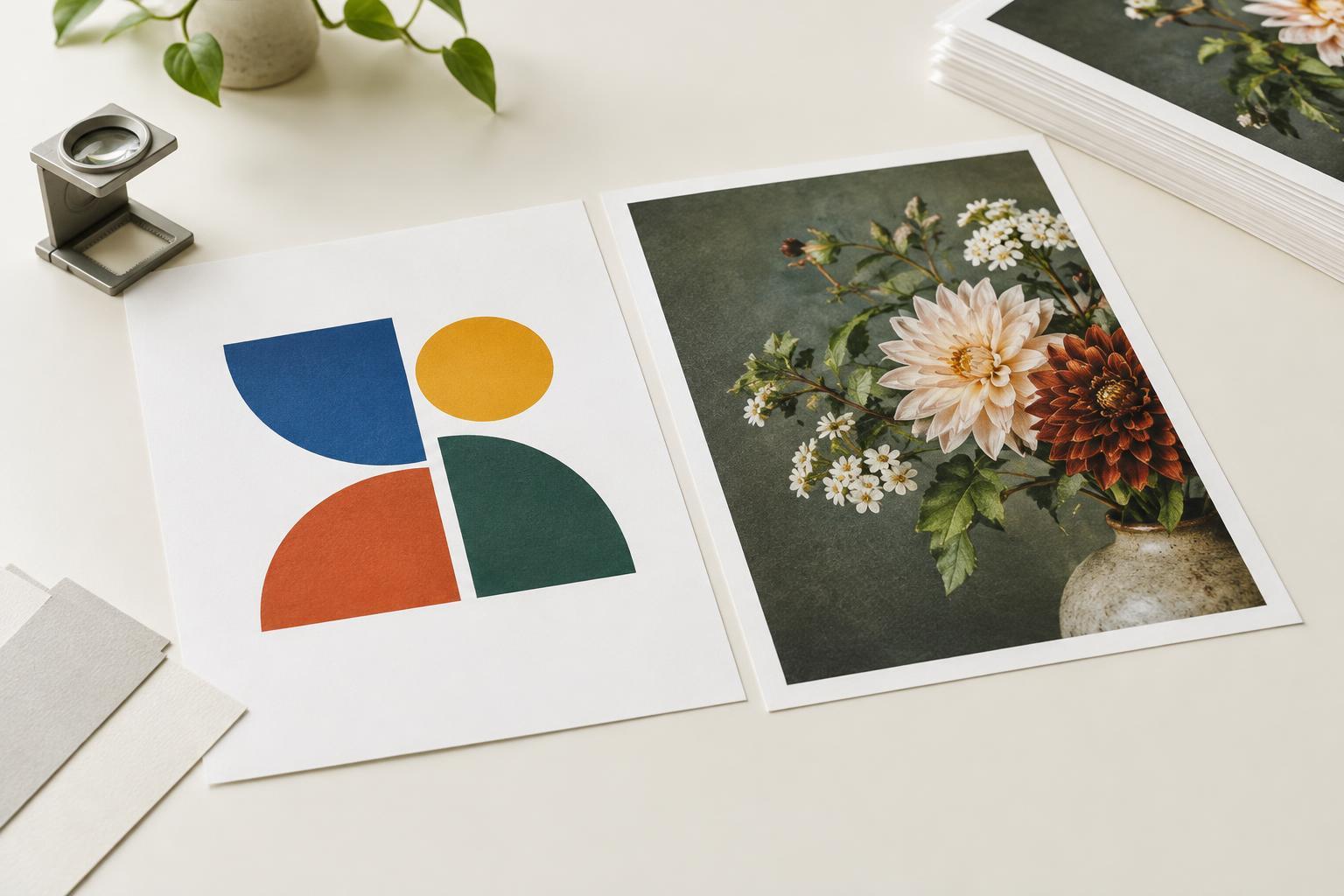
A print design may contain a logo, a product photograph, a colored background and a few lines of type. Although they appear together on the page, those elements are built in different ways. Vector artwork describes shapes through points and paths. Raster artwork is made of pixels. A printer needs each element to remain suitable for its intended size and for the production process.
File extensions offer clues, but they do not tell the whole story. A PDF can hold live vector shapes and type, raster photographs, or a single flattened image of the entire page. Likewise, placing a low-resolution logo inside a vector design file does not turn that logo into a vector. The useful question is: what is each visible element made of, and will it reproduce cleanly at the size you plan to print?
Use vector artwork for marks, type and crisp shapes
Logos, icons, diagrams, rules and simple illustrations usually benefit from being vector. Their edges can scale from a small label to a large sign without becoming blocky. Keeping text as type or vector shapes also helps it stay sharp, especially when lettering is small. A screenshot of a logo may look acceptable on a monitor but reveal soft edges when printed.
If you are supplying a standalone logo to a designer or printer, provide the original vector file when you have it, rather than a screenshot or an image copied from a website. Common vector-capable formats include PDF, EPS and SVG, though a printer may prefer one over another. Check the requested format before exporting. If the printer needs an editable file, ask which application and version they can use; a print-ready PDF and an editable source file serve different purposes.
Fonts need particular attention. A PDF with properly embedded fonts can preserve editable, searchable text while displaying the intended lettering. Converting type to outlines can avoid a missing-font problem in some workflows, but it makes later text corrections harder. Keep an editable master, proof all wording, and follow the printer’s font instructions for the delivery file.
Use raster artwork for photographs and textured images
Photographs are normally raster images. For them, the key measurement is effective resolution: the number of pixels available at the size the image will occupy on the printed piece. A photo that is 1,200 pixels wide and placed four inches wide has an effective resolution of 300 pixels per inch. Place that same file eight inches wide and its effective resolution drops to 150 pixels per inch. Changing a resolution setting without adding genuine image detail will not restore sharpness.
Around 300 pixels per inch at final size is a common starting point for photos viewed at close range, not a rule for every job. The appropriate resolution depends on the printing method, viewing distance and image content. Fine line art may need different treatment; a large display viewed from farther away may not need the same pixel density as a small card. If an image falls short, ask the printer what is acceptable before enlarging or artificially sharpening it.
For a photo, send the highest-quality original available rather than a small preview downloaded from a page or messaging app. Avoid repeated lossy saves when possible, and inspect the image at its intended print size for blur, compression blocks and unwanted halos. A good file cannot make an out-of-focus photograph sharp, but it can prevent avoidable quality loss.
Prepare mixed artwork as a complete print job
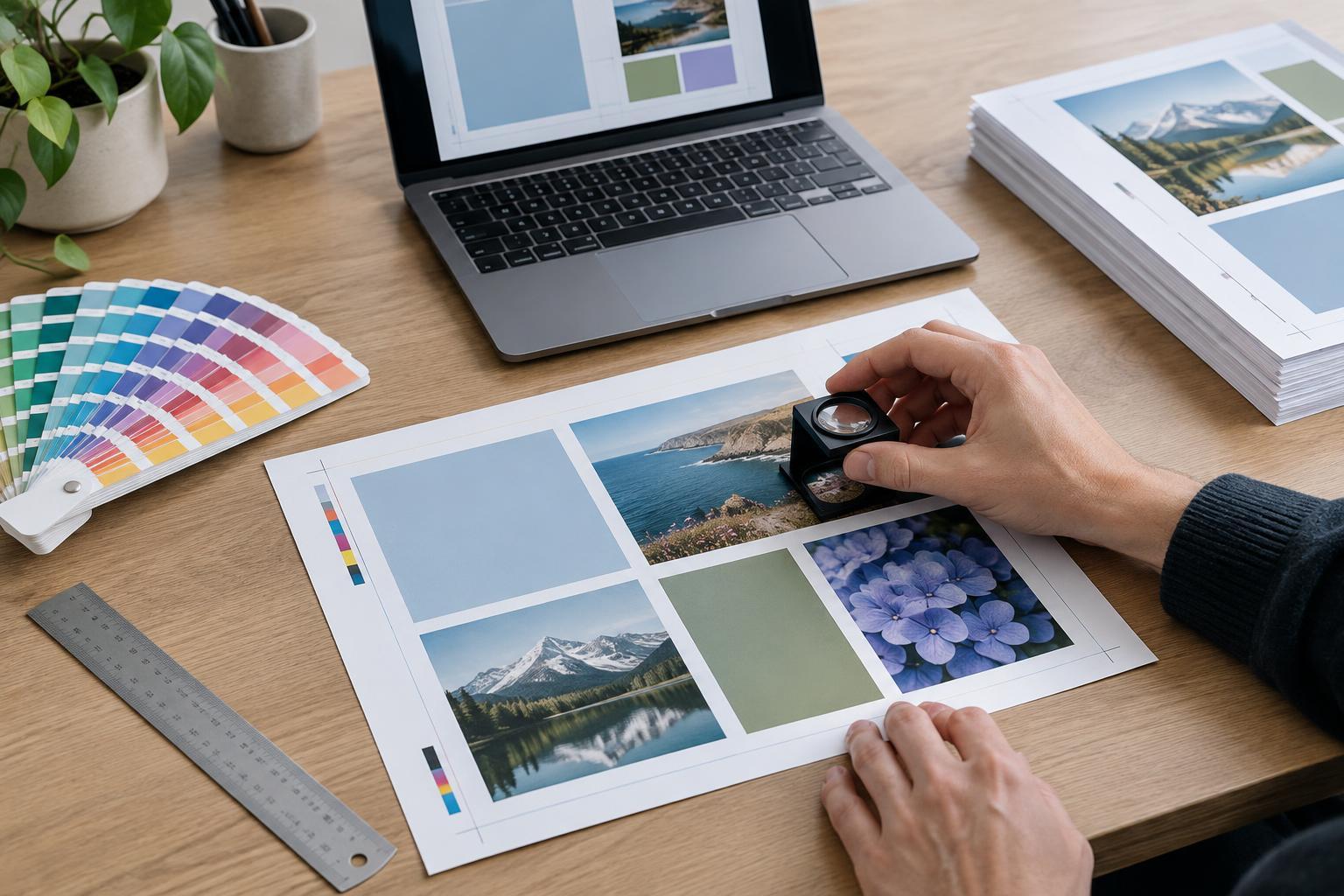
Most finished layouts combine both types: vector text and shapes alongside raster photos. Exporting the layout to PDF can preserve that mix, provided the export settings do not unnecessarily rasterize the whole page or heavily compress placed images. Check the exported PDF, not just the working document. Zoom in on type and logos, and confirm that photographs still look appropriate at their final size.
Artwork also needs the correct physical dimensions. If color or an image should run to the edge of the finished piece, extend it beyond the trim line by the bleed amount the printer requests. Keep important text and marks comfortably inside the trim area. Crop marks, page order, color settings and any spot colors are production choices to confirm with the printer rather than guess from a generic template.
Color on a screen will not perfectly predict color on paper. Different screens, inks, substrates and print processes can affect the result. Ask whether the printer wants a particular color profile or PDF preset, and request a proof when color or placement is especially important. Do not convert files repeatedly between color modes simply because one mode sounds more “print ready.”
A practical handoff check
Before sending files, separate the questions by element. Is the logo genuinely vector? Are the photos large enough at their placed dimensions? Are fonts embedded or handled as the printer requested? Does the final PDF show the right trim size, bleed and page count? Are there any missing images or unexpected white edges?
For example, a postcard with a full-bleed product photo and a small logo needs sufficient photo pixels across the entire card, extra image beyond the trim, and a crisp logo that remains clear at its printed size. Sending only a flattened, low-resolution preview gives the printer little room to fix either issue. Sending a checked PDF plus editable source files when requested makes questions easier to resolve. The goal is not to make every element vector or every image high resolution by default; it is to supply each element in a form suited to the job.